Guides
How to play karaoke on your TV: smart TV, Chromecast, Google TV and laptop
QUICK ANSWER
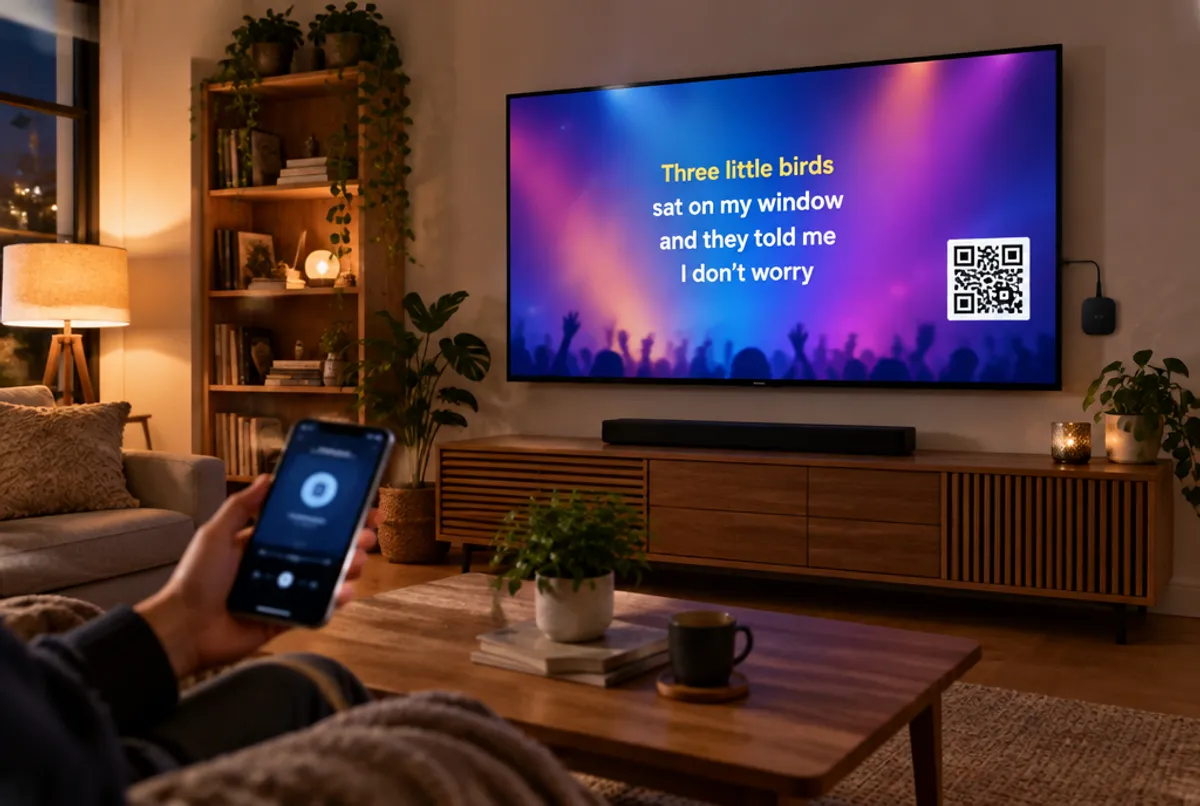
To play karaoke on your TV, open karaoque.com/tv in the browser of your smart TV or Google TV. No browser? Cast a Chrome tab to a Chromecast or plug a laptop into the TV's HDMI port. Scan the QR code on screen with your phone and you are set: the phone becomes the microphone and the lyrics show on the TV, for free.
The easiest way: a smart TV with a browser
If your TV has a web browser (almost every recent smart TV does), this is the fastest way, with no cables and no workarounds:
- Open the TV's browser (Internet on Samsung, Web Browser on LG, Chrome or whatever comes installed).
- Type karaoque.com/tv in the address bar.
- A QR code appears on screen. Scan it with your phone's camera.
- Done: your phone is now the microphone and remote, and the lyrics appear on the TV.
Tip: bookmark karaoque.com/tv on the TV so you do not have to type it again next time. Brand-specific steps are in karaoke on Samsung and LG smart TVs.
Karaoke with Chromecast (casting from a laptop)
No browser on the TV, but a Chromecast plugged in? You can cast a Chrome tab:
- On your laptop, open Chrome and go to karaoque.com/tv.
- Click the three-dot menu and choose Cast.
- Pick your Chromecast from the list.
- Under Sources, choose Cast tab to send the page to the TV.
Heads up: Chromecast was built for video, so there may be a small delay. It works fine for karaoke, but if you notice lag in the sound, use the smart TV browser or an HDMI cable instead.
Karaoke on Google TV and Android TV
Devices with Google TV or Android TV (like Chromecast with Google TV, streaming boxes and many newer TVs) have the Play Store and let you install a browser:
- In the TV's Play Store, install a browser such as TV Bro.
- Open the browser and go to karaoque.com/tv.
- Use the remote to type, or cast from your phone.
- Scan the QR code with your phone and start singing.
Karaoke from a laptop with an HDMI cable
The most foolproof method. It works with any TV that has an HDMI port, even older ones:
- Connect the HDMI cable from your laptop to the TV.
- On the TV, switch the input (Source or Input button) to the right HDMI port.
- On the laptop, open karaoque.com/tv and go full screen (F11 in Chrome on Windows).
- Scan the QR code with your phone. Sound comes out of the TV or a speaker connected to the laptop.
Which method to choose: comparison table
| Method | What you need | Ease | Sound quality | Best for |
|---|---|---|---|---|
| Smart TV browser | Just the TV | Very easy | Great | Everyday use, no cables |
| Chromecast | Chromecast and a laptop | Easy | Good (may lag a bit) | TVs without a browser |
| Google TV / Android TV | Install a browser | Medium | Great | People who already have a streaming box |
| Laptop on HDMI | An HDMI cable | Easy | Great | Older TVs, zero risk |
Make the party sound better
The TV speakers do the job, but for a bigger party it is worth connecting a speaker or soundbar. On a laptop, plug the speaker into the audio jack. On a smart TV, connect over Bluetooth or an audio cable. Good volume makes the night.
Troubleshooting
- The QR code does not show up: check that you opened karaoque.com/tv (with /tv at the end) and reload the page.
- The phone will not read the QR code: move the camera closer and make sure the phone and TV are on the same Wi-Fi network.
- Sound lags on Chromecast: switch to an HDMI cable or open the site directly in the smart TV browser.
- The video stutters: check the TV's internet. Karaoke streams video, so weak Wi-Fi gets in the way.
Once the TV is on, just build the queue. See how to do karaoke at home to have everything ready before your friends arrive, and our overview of karaoke on TV. All free, no app to download.
Frequently asked questions
How do I get karaoke on my smart TV without an app?
Open your smart TV's browser, type karaoque.com/tv and scan the QR code with your phone. Your phone becomes the microphone and the lyrics show on the TV. Nothing to install and no sign-up.
Can I do karaoke with a Chromecast?
Yes. Open karaoque.com/tv in Chrome on your laptop, click Cast and choose Cast tab to your Chromecast. Since Chromecast is built for video, there may be a slight delay in the sound.
My TV is old and has no browser. Will it work?
Yes. Plug a laptop into the TV's HDMI port, open karaoque.com/tv in full screen and you are done. Any TV with HDMI works, even older ones.
Do I need a microphone to sing on the TV?
No. Each person's phone becomes a microphone through the browser and sends the voice to the TV live. Just scan the QR code on screen with the camera.
How much does it cost to play karaoke on the TV?
Nothing. Opening karaoque.com/tv and singing is free, with no song limit.